Docs / Certificates / Overview
RDS Certificates Overview
The Certificates page lists every SSL/TLS certificate issued for Windows Remote Desktop Services servers, showing issuance state, expiry countdown, and whether the PowerShell agent is actively monitoring each certificate.
app.albaspot.com
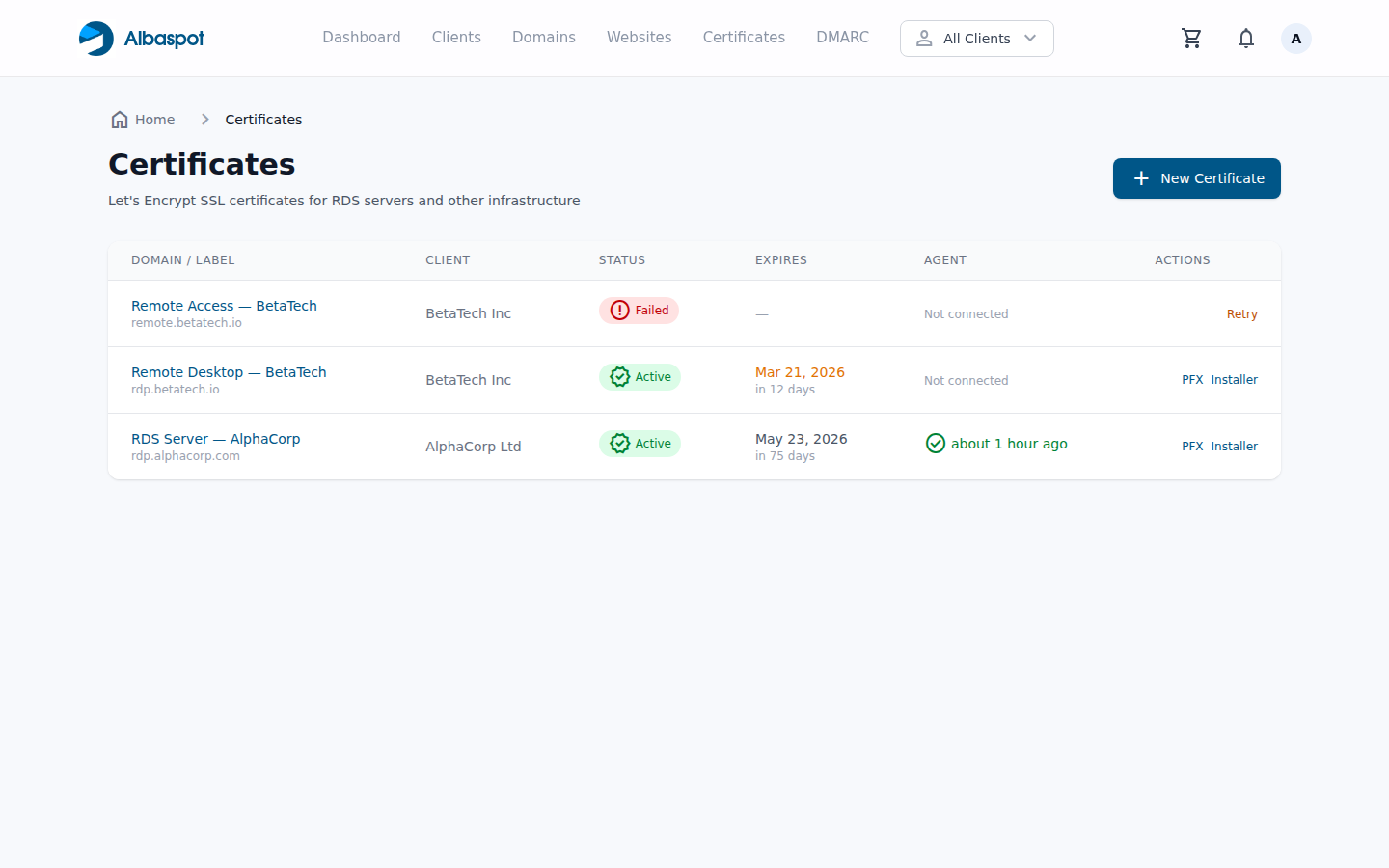
What each column shows
- Domain — the fully qualified domain name the certificate is issued for, linked to its detail page.
- Client — which client this certificate belongs to. Every certificate must be assigned to a client.
- Status — current lifecycle state of the certificate (see status badges below).
- Expires — the certificate expiry date. A warning badge appears as the expiry approaches.
- Agent — whether the PowerShell auto-deploy agent has checked in recently. Shows the last-seen timestamp when active.
Status badges explained
- Pending — the certificate request has been received and the ACME order is being prepared.
- Issuing — the DNS-01 challenge is in progress. Albaspot has added the required TXT record to DNSimple and is waiting for ACME validation.
- Active — the certificate is valid and deployed. The expiry countdown is shown in the Expires column.
- Renewing — auto-renewal has been triggered (14 days before expiry). A new certificate is being issued to replace the current one.
- Failed — issuance or renewal encountered an error. Open the certificate detail page to view the reason and retry.
Expiry countdown
Let's Encrypt certificates are valid for 90 days. Albaspot displays a countdown in the Expires column and highlights certificates nearing expiry. Email notifications are sent at 30, 14, and 7 days before expiry. Auto-renewal starts at 14 days, so under normal circumstances a certificate will renew before any warning is reached.