Docs / Certificates / Auto-Renewal & Notifications
Auto-Renewal & Notifications
Albaspot automatically renews SSL/TLS certificates before they expire and sends email notifications at every key lifecycle event — so you're never caught off guard by an expired certificate.
How auto-renewal works
Certificates are issued by Let's Encrypt and are valid for 90 days. Albaspot checks for expiring certificates daily at 10 am and triggers renewal automatically when a certificate is within 30 days of expiry.
- Daily check — every day the system scans all active certificates and identifies those expiring within 30 days.
- DNS-01 challenge — renewal uses the same DNS-01 challenge as initial issuance: a TXT record is created on the domain's DNS zone to prove ownership, then removed after Let's Encrypt validates it.
- Certificate status — during renewal the certificate status changes to Renewing. Once Let's Encrypt signs the new certificate the status returns to Active.
- Agent auto-deploy — if a PowerShell agent is running on the Windows server, it polls the API every 30 minutes and automatically imports the new certificate the next time it checks in after renewal completes.
Email notifications
Albaspot sends email notifications to the team owner at the following events:
- Certificate issued — sent when a new certificate is successfully issued. Includes download links for PFX and PEM bundles and a reminder to run the PowerShell installer if you haven't already.
- Expiry warning — sent at 30, 14, and 7 days before expiry. Auto-renewal will have already started by the 30-day mark, so these warnings typically only appear if renewal is struggling.
- Certificate renewed — sent when auto-renewal completes successfully. If a PowerShell agent is deployed the new certificate will be imported automatically on its next poll cycle.
- Issuance failed — sent if the initial certificate request could not be completed. The failure reason is included so you can resolve the DNS configuration issue and retry.
- Renewal failed — sent if auto-renewal could not complete before expiry. The email includes the failure reason and days remaining so you can act quickly. Open the certificate detail page to view the error and trigger a manual retry.
Handling a failed renewal
If renewal fails, the certificate detail page will show a Failed status badge and a failure reason message.
app.albaspot.com
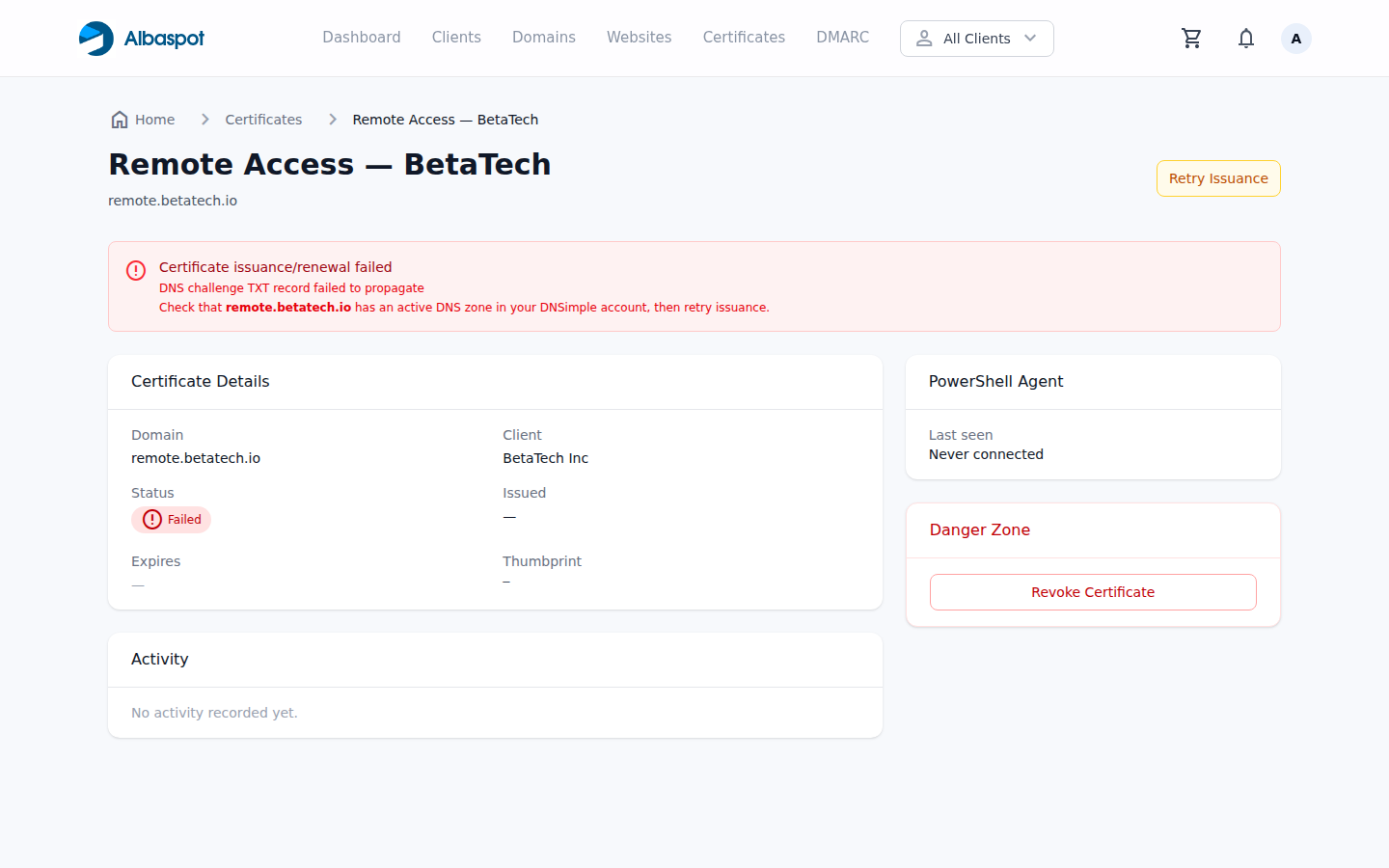
Common causes of renewal failure:
- DNS propagation delay — the TXT challenge record wasn't visible to Let's Encrypt's validators when they checked. This is the most common cause. Retrying usually succeeds once propagation catches up.
- Domain not in DNS account — the domain must be managed in your connected DNS account. If the domain was transferred or moved, re-link it before retrying.
- Rate limits — Let's Encrypt enforces certificate issuance rate limits. If you've issued many certificates for the same domain recently, you may need to wait before retrying.
To retry, open the certificate detail page and click Retry Issuance. The system will re-run the full DNS-01 challenge flow.