Certificate Detail
The certificate detail page gives you a complete view of a single certificate — its current state, key metadata, download options, and the PowerShell installer for automatic deployment to your Windows RDS server.
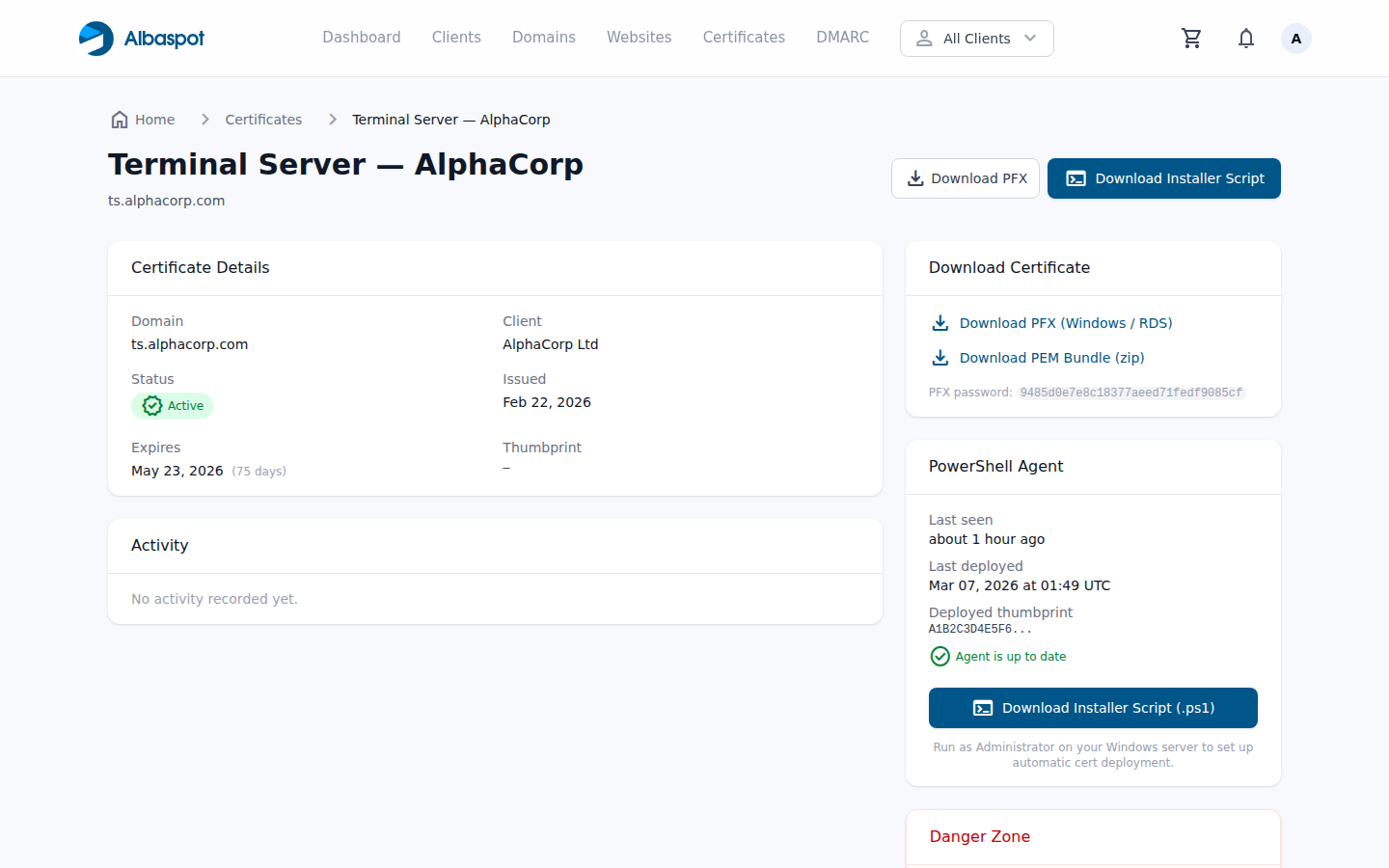
Certificate information
- Domain — the fully qualified domain name the certificate covers.
- Client — the client this certificate is scoped to.
- Status — current lifecycle state with a colour-coded badge (pending / issuing / active / renewing / failed).
- Issued date — when the certificate was signed by Let's Encrypt.
- Expires — the exact expiry timestamp with a countdown. Highlighted in amber when fewer than 30 days remain.
- Thumbprint — the SHA-1 fingerprint of the current certificate, useful for verifying the correct cert is loaded in Windows.
Download options
Two formats are available for download from the detail page:
- PFX (PKCS#12) — the certificate and private key in a single password-protected file, ready to import into the Windows certificate store. This is the format used by the PowerShell agent.
- PEM bundle (zip) — a zip archive containing the certificate, intermediate chain, and private key as separate PEM files. Use this for non-Windows targets or manual configuration.
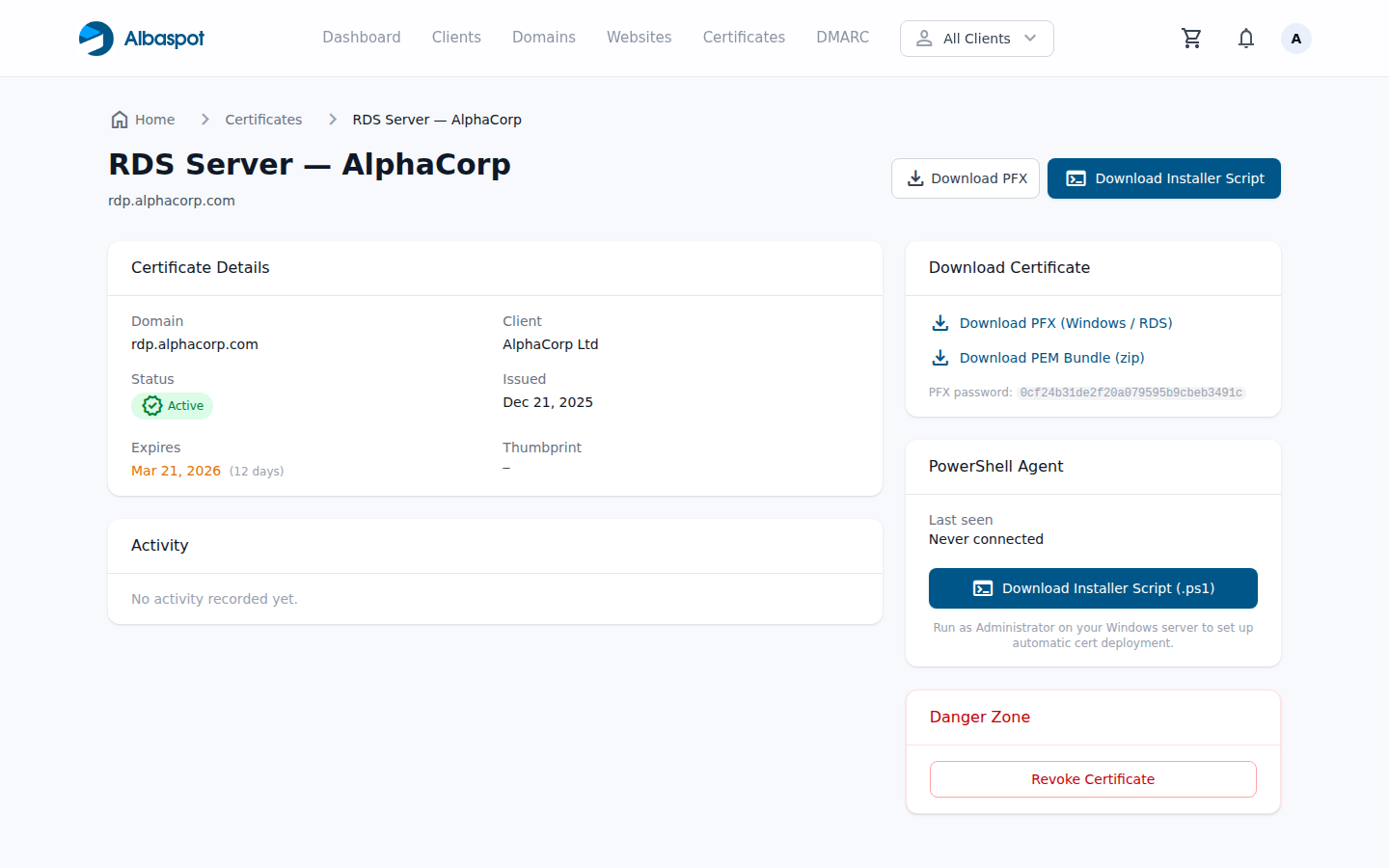
PowerShell installer
The PowerShell Installer section on the detail page provides a pre-configured installer script download and the certificate's unique agent token. Run the installer as Administrator on the Windows RDS server to set up the auto-deploy agent as a Scheduled Task. See PowerShell Auto-Deploy Agent for full setup instructions.
Agent status badge
Once the agent is installed and running, the Agent badge on the detail page updates to show Connected along with the last-seen timestamp. If the agent has not checked in within the expected polling window, the badge shows Not seen to alert you that the scheduled task may need attention.
Danger zone
The Revoke action at the bottom of the page immediately revokes the certificate with Let's Encrypt and marks it as inactive in Albaspot. Use this if a private key is believed to be compromised. Revocation is irreversible — you will need to request a new certificate for the same domain.